
Change the text on your site
Tap the words you want to change, type and press Save.
2 min readUpdated 18 October 2026
In this guide
In a nutshell
- In your dashboard, press Your site and then Edit on the site.
- Tap the text you want to change. The field holding those words opens beside it.
- Type and press Save. The site changes within seconds.
All the text is changed on the site itself. When your site is created, each part has example text so you can see how it looks. Guests don't see those examples: a part only appears once you change it or save it.
Step by step
- 1
Open the editor
In your dashboard, press Your site and then Edit on the site. Your site fills the screen, with the list of parts beside it.
- 2
Tap the words
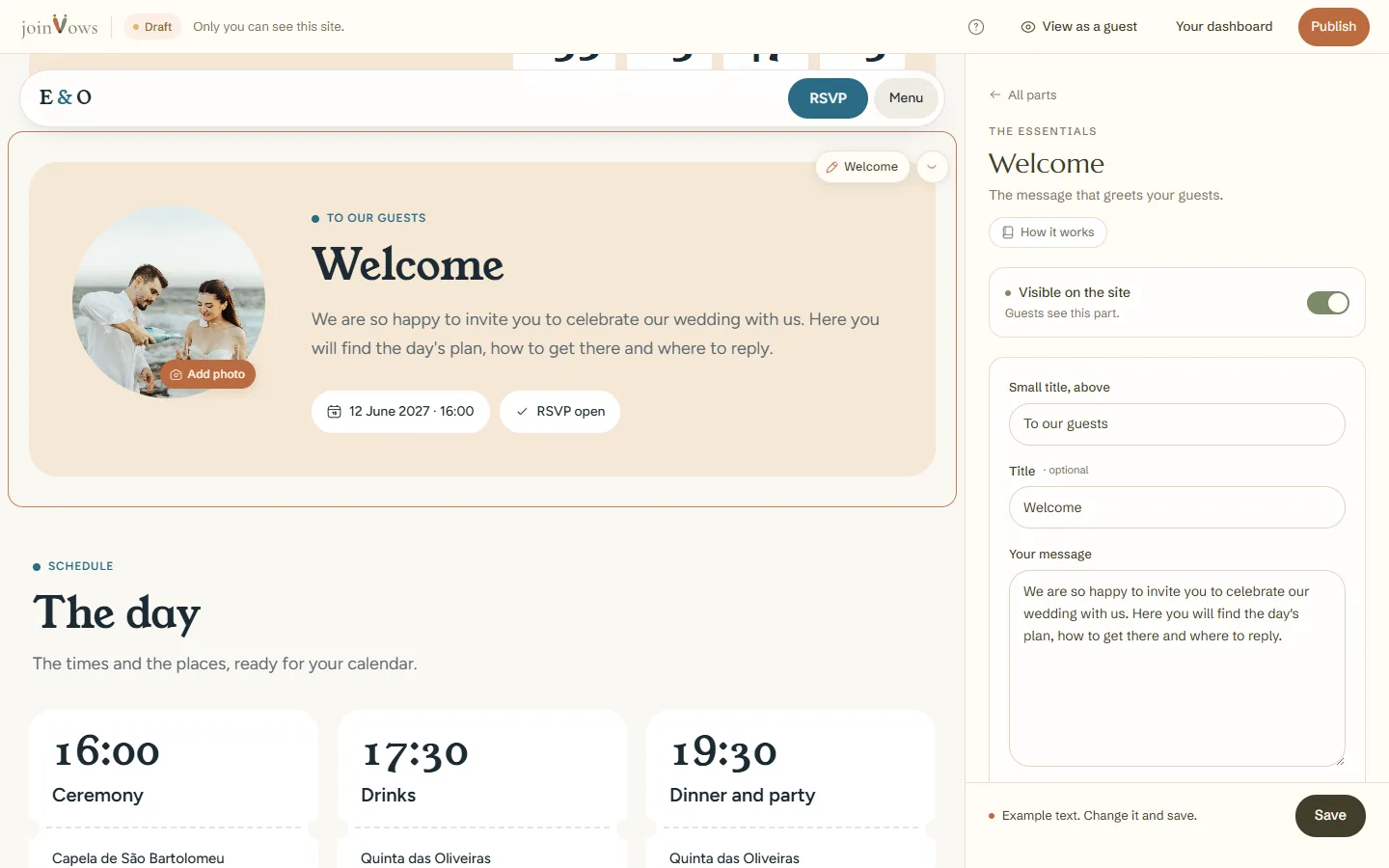
Tap a title or a paragraph. The panel opens that part with the cursor in the right field. On a phone, the panel slides up over the site.
- 3
Type and save
Press Save at the bottom of the panel. Each part has one Save, which saves everything you changed in it, including The words in this part. The site behind the panel updates. If you want to keep the example text, just save it as it is.
The titles of each part
Each part also has the design's own words: the Small title, above, the Title and, in some parts, the Opening line. They are in the The words in this part card. If you leave one of these fields empty, the site goes back to the design's words.
FAQ
Do guests see the example text?
No. A part with example text is not shown to guests until you change it or save it.
Can I go back to the design's original title?
Yes. Clear what you typed in the field and press Save. The design's title comes back.
Does changing the design delete my text?
No. Your text and photos stay the same when you change the design or the colours.
Did this guide help?
Don't have a site yet?
Create yours in two minutes. Free until you decide to publish.
Create our site (opens in a new tab)