
Change the photos on your site
The cover, your story and the gallery: uploading, swapping and how many you can have.
2 min readUpdated 10 October 2026
In this guide
In a nutshell
- In the editor, tap the photo you want to change and pick another.
- It saves straight away. You don't need to make it smaller.
Each photo is changed where it appears. You don't need to resize anything: we do that, so the site opens quickly on a phone.
On the site itself
- 1
Open the editor
In your dashboard, press Your site and then Edit on the site.
- 2
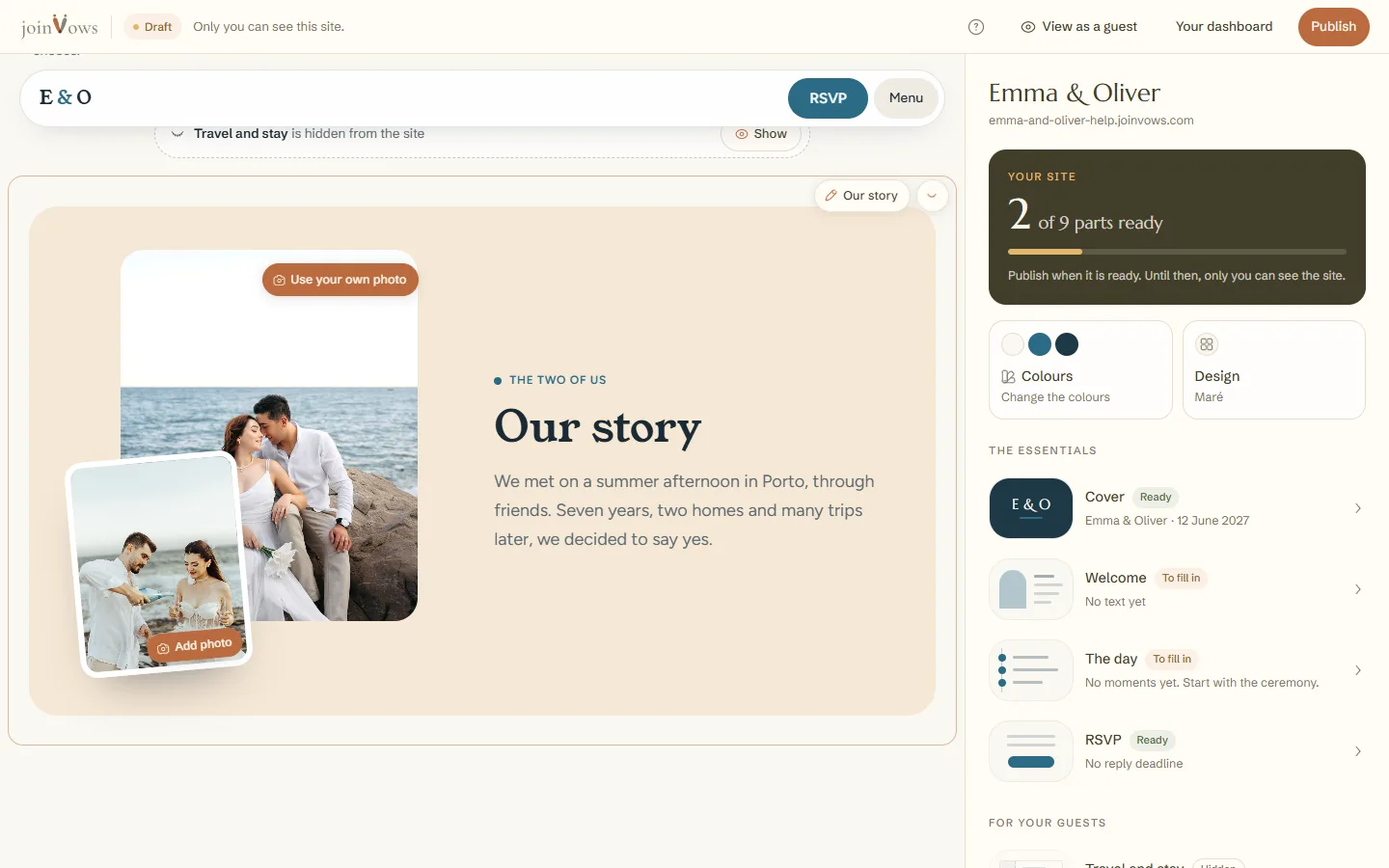
Tap the photo
Tap the photo you want to change, or the Use your own photo button on it. Pick the photo from your computer or phone.
- 3
It saves straight away
The new photo appears on the site within seconds. There is nothing else to save.
The gallery
- You can upload several photos at once.
- Use the arrows to change the order. The first one shows first.
- The Essencial plan shows up to 5 photos and Elegante up to 20. Único has no limit.
FAQ
How many photos can the gallery have?
Essencial shows 5, Elegante 20, and Único has no limit.
Do large photos make the site slow?
No. We resize every photo so the site opens quickly on a phone.
Which photo works best on the cover?
A landscape photo. On a phone, the centre of the photo is what shows.
Did this guide help?
Don't have a site yet?
Create yours in two minutes. Free until you decide to publish.
Create our site (opens in a new tab)