
The day: times, places and maps
The moments of the day, each with its time, place, address and map link.
3 min readUpdated 18 October 2026
In this guide
In a nutshell
- In the editor, open The day.
- For each moment, type the Time, What happens, the Place and the Address.
- Paste the Map link to show the map button. Press Save.
This is the part guests open most on the day itself: what time to arrive and where to go. It is always on the site and appears as soon as one moment is saved.
Add the moments
- 1
Open The day
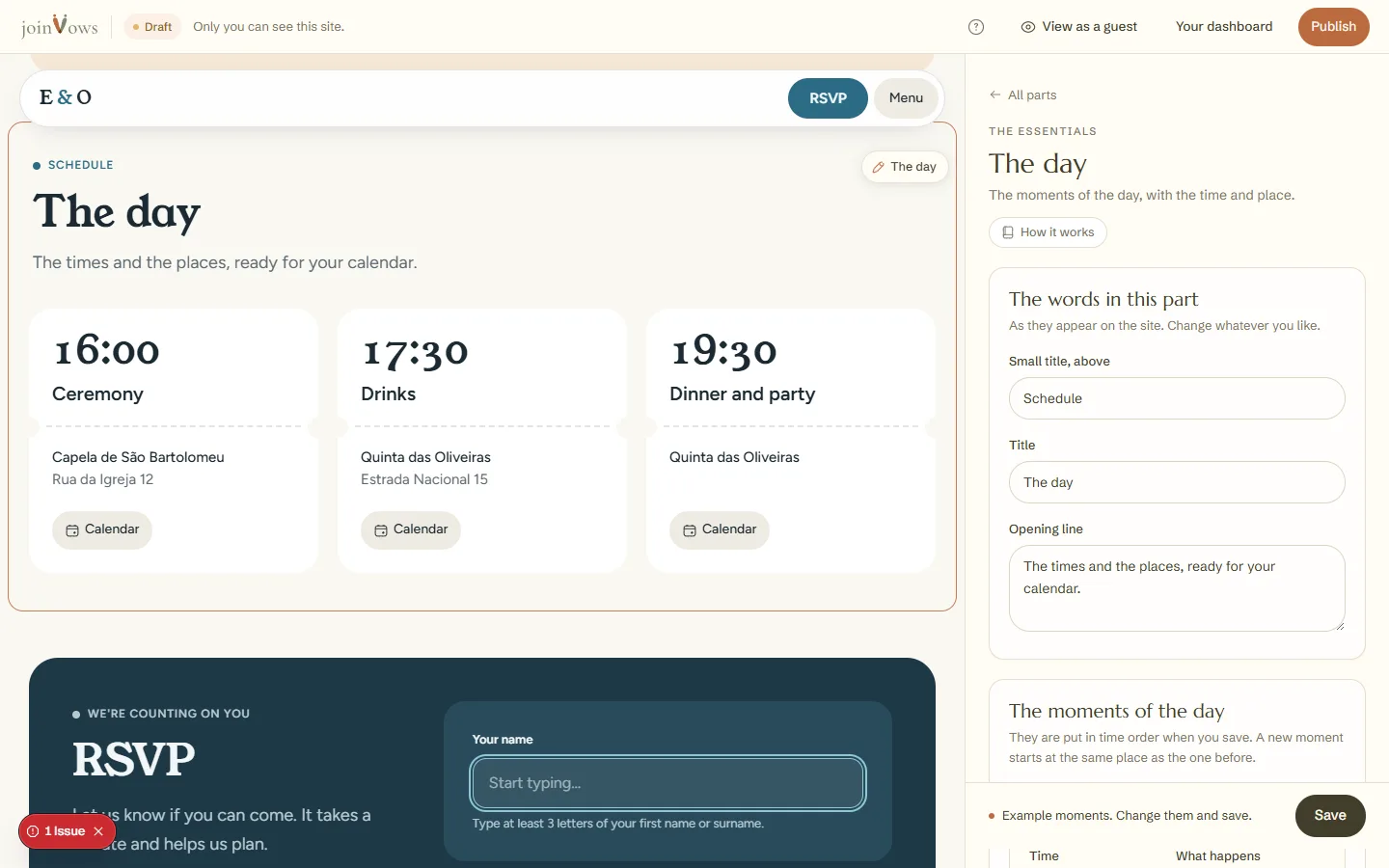
In the editor, tap the programme on the site or The day in the list of parts. If the part is still empty, example moments appear for you to change.
- 2
Fill in each moment
Time, What happens (for example, the ceremony), Place and Address. A new moment starts at the same place as the one before, so you don't type the address twice.
- 3
Add more
Under Add a moment, tap a suggestion or Another moment. You can have up to 12 moments.
- 4
Save
Press Save at the bottom of the panel. It saves the moments and the words of this part in one go. The moments appear in time order on the site.
The map link
The map button only appears when there is a Map link. In Google Maps, search for the place, press Share and copy the link. Paste it into the moment.
- Once the wedding has a date, each moment with a time has a button for guests to add it to their phone's calendar.
- A dinner the night before? Press Is this moment on another day? and choose the date.
- No date yet? Add the times anyway. The site shows them without the day. When you choose the date in the Cover, the moments move onto that day, at the same time.
FAQ
Can I remove a moment?
Yes. Press the bin next to the moment and then Save.
Can I hide The day?
No. The cover, The day and the RSVP are always on the site. Until The day has saved moments, guests don't see it.
Did this guide help?
Don't have a site yet?
Create yours in two minutes. Free until you decide to publish.
Create our site (opens in a new tab)