
See your site as a guest
See exactly what your guests will see, with no edit buttons and no example text.
1 min readUpdated 18 October 2026
In a nutshell
- In the editor, press View as a guest.
- To keep making changes, press Back to editing.
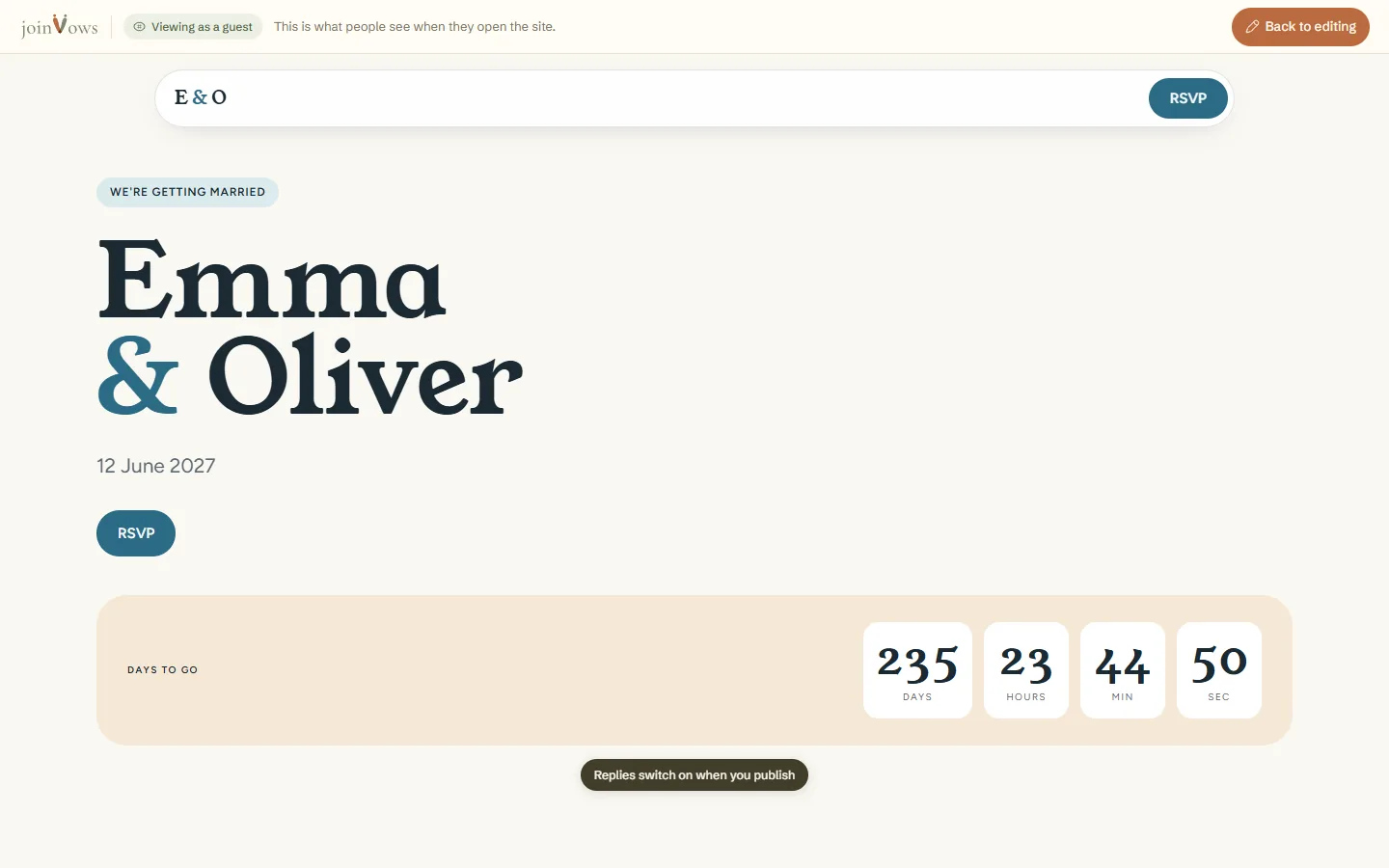
While you edit, the site shows part names, example text and spaces still to fill in. Only you see those. To see the site as guests will open it, use View as a guest.
- 1
Press View as a guest
On a computer, it is in the editor's top bar, next to Your dashboard. On a phone, press Parts at the bottom, then View as a guest.
- 2
Scroll through the site
Hidden parts, empty parts and parts with only example text disappear. What you see is what guests would see if you published now.
- 3
Go back to editing
Press Back to editing.
FAQ
Can guests already see the site?
Only after you publish. While the editor says Draft, only you can see it.
How do I see the site on a phone?
Sign in on your phone and open the editor. The site shows at phone width, as guests see it.
Did this guide help?
Don't have a site yet?
Create yours in two minutes. Free until you decide to publish.
Create our site (opens in a new tab)