
Hide and show parts of your site
Take parts you don't want off the site without deleting anything, and bring them back with one tap.
2 min readUpdated 5 October 2026
In this guide
In a nutshell
- In the editor, open the part and switch off Show on the site.
- To show it again, switch the same toggle on or press Show on the site.
- Nothing is deleted. The cover, The day and the RSVP can't be hidden.
Every site has several parts. The ones you don't need can be hidden, and what you wrote stays saved for later.
Hide a part
- 1
Open the part
In the editor, tap the part in the list of parts, or the part itself on the site.
- 2
Switch off Show on the site
At the top of the panel, switch off Show on the site. It now says Hidden from the site and the part leaves the site within seconds.
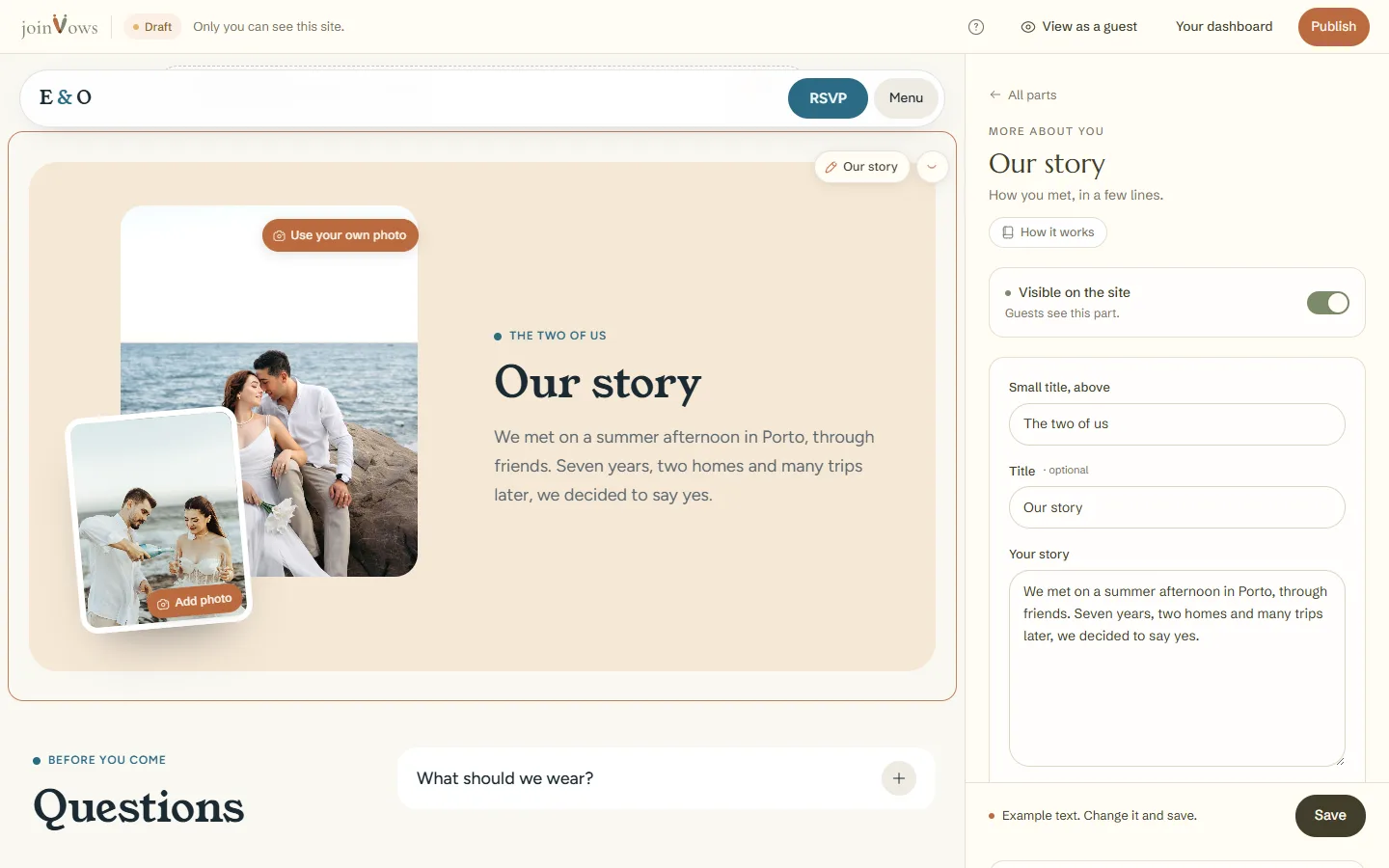
On the site, you can also press the crossed-out eye next to the part's name (Hide from the site). Where the part was, a line with a Show button stays, so you can bring it back.
Which parts can be hidden
- You can hide: Welcome, Travel and stay, FAQ, Gifts, Our story, Gallery and Dress code.
- Always on the site: Cover, The day and RSVP.
- A part that is empty or only has example text doesn't show to guests, even when switched on.
FAQ
Do I lose what I wrote if I hide a part?
No. Nothing is deleted. When you show it again, it appears as it was.
Are there parts our plan doesn't show?
No. Every part is in every plan. What changes is the number of photos in the gallery: 5 on Essencial, 20 on Elegante and no limit on Único.
Did this guide help?
Don't have a site yet?
Create yours in two minutes. Free until you decide to publish.
Create our site (opens in a new tab)