
Gifts on your site
Adding gifts from the site, saying where the money goes, and showing or hiding the list.
2 min readUpdated 18 October 2026
In this guide
In a nutshell
- In the editor, open Gifts and add your first gift or fund.
- Under Where the money goes, type your IBAN and, if you like, your MB WAY.
- The money goes straight to you. None of it passes through joinVows.
The Gifts part shows your list to guests. One gift or one fund is enough for it to appear on the site.
Add gifts from the site
- 1
Open Gifts
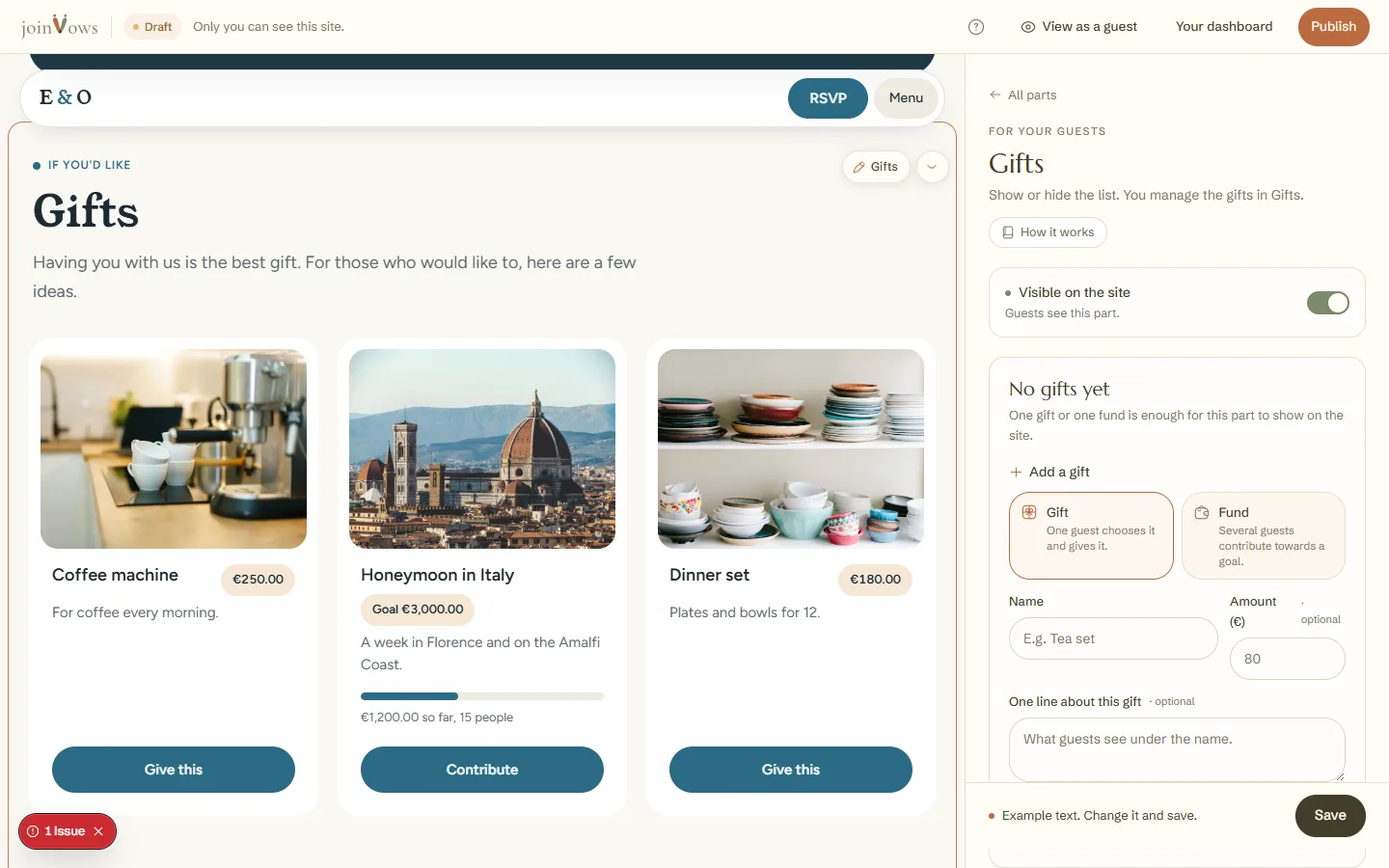
In the editor, tap Gifts in the list of parts.
- 2
Choose Gift or Fund
A Gift is chosen and given by one guest. With a Fund, several guests contribute towards a goal, for example the honeymoon.
- 3
Fill in and add
Type the Name, the amount (optional for a gift, required for a fund) and a line about it. Press Add to the list. For the next one, press Add another gift.
- 4
Change a gift
Tap the pencil next to a gift, or its name. It opens in the same form: change what you need and press Save changes.
- 5
Say where the money goes
Under Where the money goes, type your IBAN and, if you like, your MB WAY, and press Save at the bottom of the panel. It is one IBAN and one MB WAY for the two of you. MB WAY only takes a Portuguese number, and we check your IBAN is written correctly.
What guests see
The guest picks a gift, types their name and email, and sees your IBAN on screen, and your MB WAY if you added it. They get the same details by email. Your IBAN is not written on the page: it only shows to someone who picks a gift.
FAQ
Does joinVows take a cut?
No. Guests transfer straight to your IBAN or MB WAY. The money never passes through us.
We don't want a gift list. How do we remove it?
Open Gifts in the editor and switch off Show on the site. With no gifts on the list, the part doesn't appear either.
Can I delete a gift that has already been given?
Not from the editor. A gift that was given stays on the list marked already given.
Did this guide help?
Don't have a site yet?
Create yours in two minutes. Free until you decide to publish.
Create our site (opens in a new tab)