
How to create your gift list
Add gifts and funds, say where the money goes and choose your list options.
3 min readUpdated 18 October 2026
In a nutshell
- In Gifts, press Add a gift.
- Choose Gift or Fund, type the name and the amount, and save.
- In the card at the top, or under IBAN and MB WAY, type your IBAN. The money goes straight to you.
The list appears on your site, in the Gifts part. Each guest chooses a gift and pays you directly, by bank transfer or MB WAY. joinVows charges no commission and never touches the money.
Add a gift
- 1
Open Gifts and press Add a gift
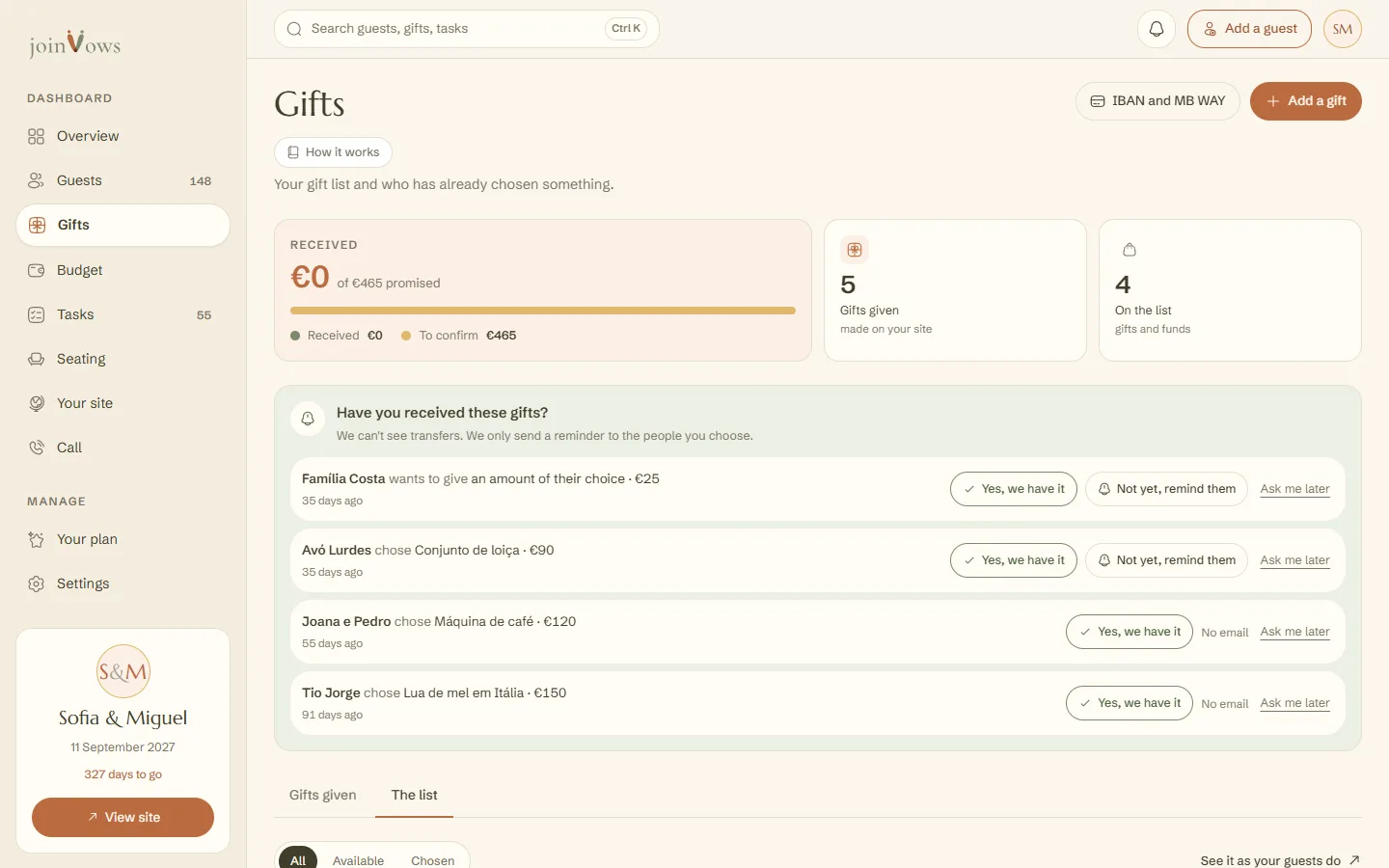
The button is at the top of the page. Until you have your first gift from a guest, Gifts opens on the The list tab. With an empty list it has an Add your first gift button. After that, an Add card follows your gifts.
- 2
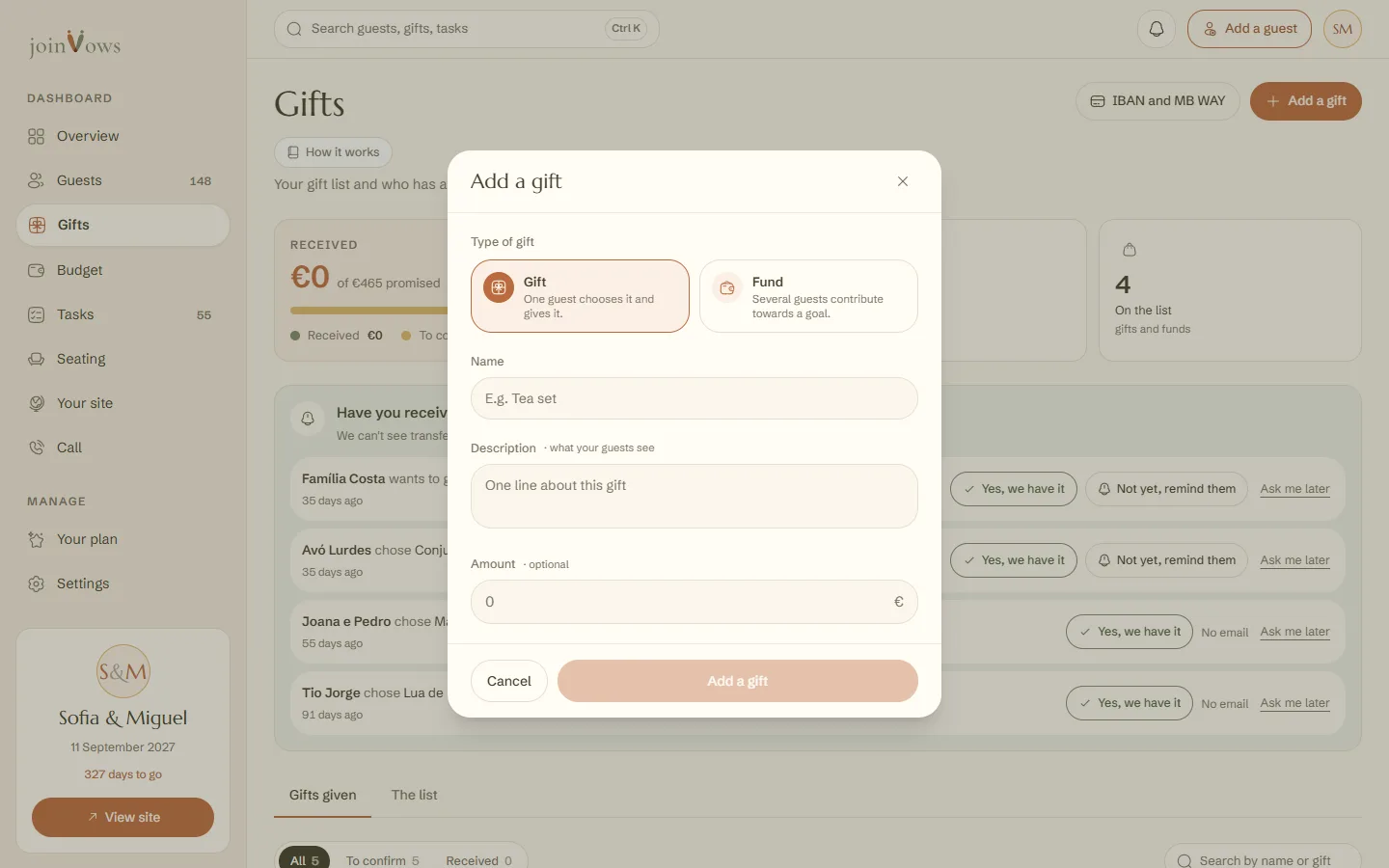
Choose the type
A Gift is given by one guest. A Fund collects contributions from several guests towards a goal, such as your honeymoon.
- 3
Type the name, description and amount
The description is the line your guests see. For a gift, the amount is optional. For a fund, the goal is required. Press Add a gift to save.
Say where the money goes
Until you say where you receive the money, the top of Gifts has a card that asks. Type your IBAN and, if you are in Portugal and want to, press Yes to add your MB WAY number. No IBAN to hand? Press Later: it stays under the IBAN and MB WAY button at the top of the page. Guests only see these details after they choose a gift. More in How the money reaches you.
The two list options
In the The list tab, next to your payment details, there are two switches.
- With Close a gift when someone chooses it on, the gift shows as Already chosen to other guests. Off, several people can choose the same gift.
- With Let guests give an amount of their choice on, your site shows the An amount of your choice card. It only shows once you add your IBAN or MB WAY.
Change or remove a gift
In The list, tap the three dots on a gift and choose Edit or Remove. A gift someone has already chosen stays on the list, and its type (gift or fund) can no longer change.
FAQ
Does the gift list cost anything?
It's included in every plan and we charge no commission. The money goes straight from your guests to you.
How many gifts show on the site's home page?
Up to 3. With more, a See all gifts card opens the full list.
Can a guest give something that isn't on the list?
Yes, an amount of their choice, if Let guests give an amount of their choice is on and you've added your IBAN or MB WAY.
Did this guide help?
Don't have a site yet?
Create yours in two minutes. Free until you decide to publish.
Create our site (opens in a new tab)