
Households and invitations for several people
Put a family or a couple on one invitation, so one person can reply for everyone.
3 min readUpdated 5 October 2026
In a nutshell
- Tick the people in the list and press Create group in the bar at the bottom.
- Everyone in the group is on the same invitation. On the site, whoever finds the invitation replies for all of them.
In the list, each row is a person. An invitation can have one person or several. When a family is on the same invitation, one person can reply for everyone on the site.
Create a group
- 1
Tick the people
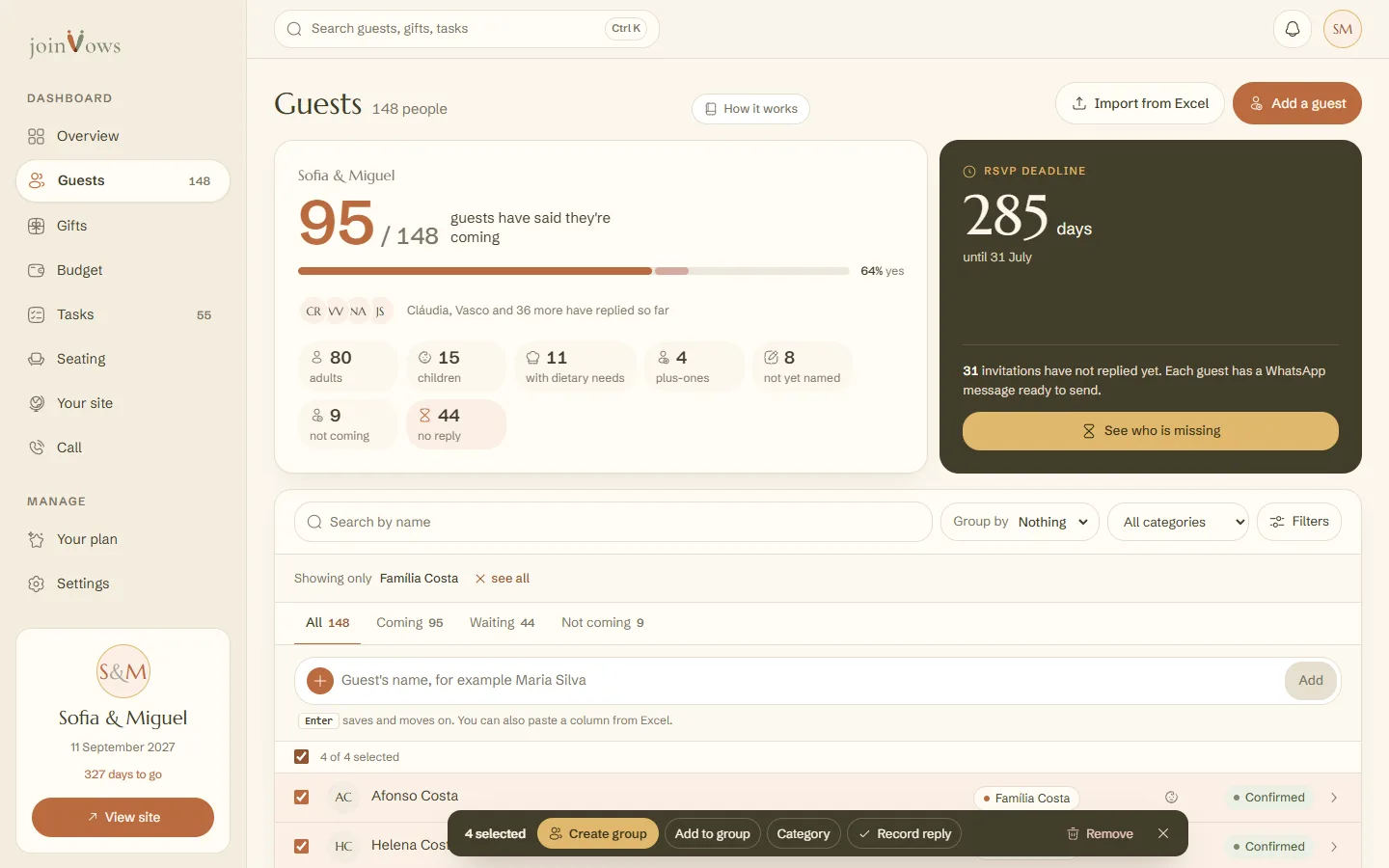
Tick the box next to each name. You need at least two people. A dark bar appears at the bottom.
- 2
Press Create group
Type the Group name, for example The Coelho family, and press Create group. If you leave it blank, we suggest the surname they share.
To add people to a group that already exists, tick them and press Add to group. To take someone out of a group, open their details, press More details and then Leave the invitation.
Change an invitation
Open the details of anyone on the invitation. What you change there applies to the whole invitation, and each field saves when you move to the next one.
- Below the people on the invitation, type a name and press Add to add someone. Add a seat without a name keeps a place for someone whose name you don't know yet.
- Under More details, change the Invitation name, for example from The Silva family to Uncle and aunt Silva. The list changes straight away.
- The email, phone, category and a note only you can see are in the same place.
- Plus-ones and Reply by change only this invitation. Back to the list setting and Back to the list deadline undo the change.
On an invitation for one person, add someone under More details, in Someone else on this invitation.
Who replies for the invitation
The first person with a name replies for the group and shows a crown. In each adult's details, under More details, you can turn on Replies for the whole invitation for more people. A child can't reply for the others.
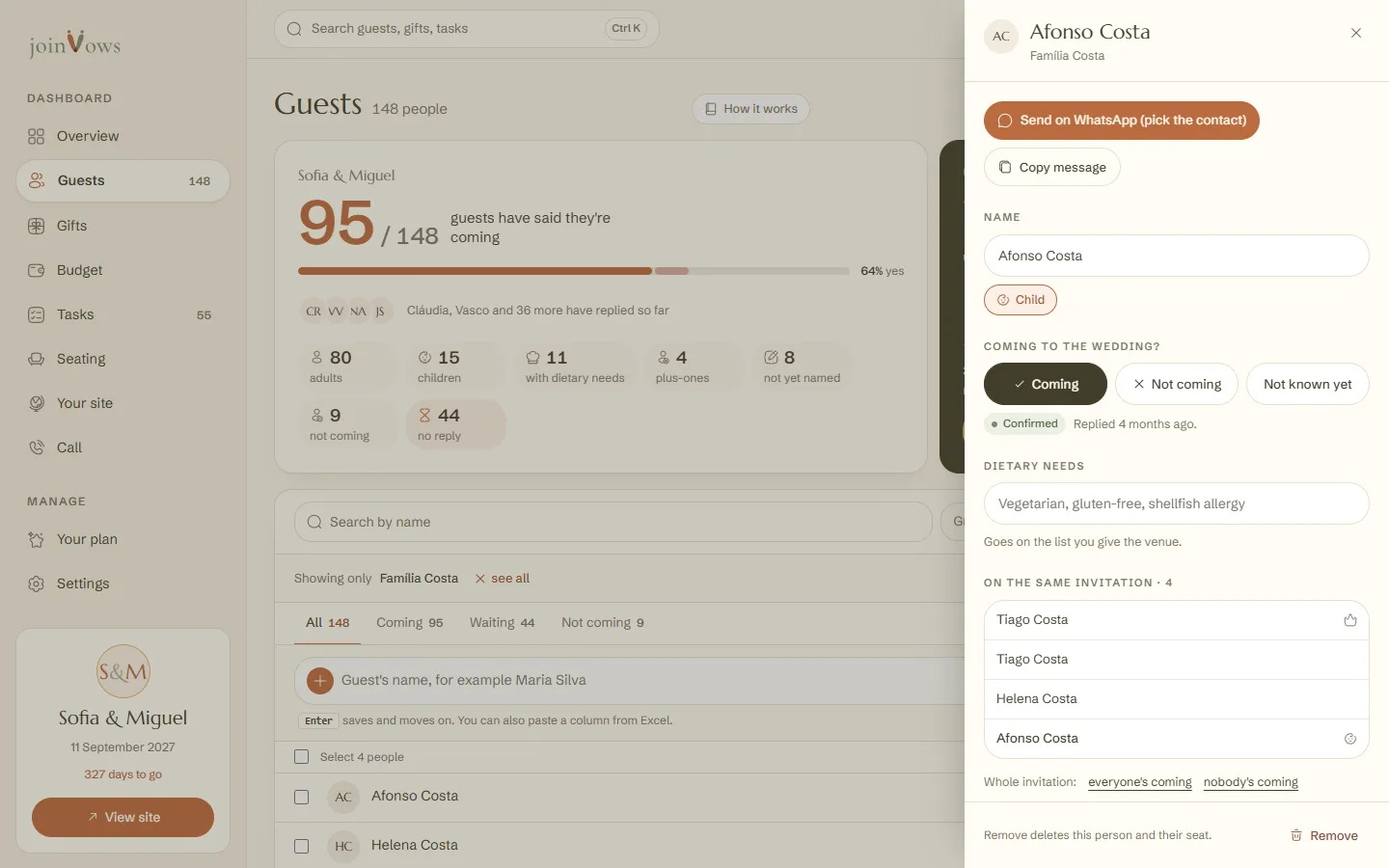
- Under Whole invitation, in the details, mark everyone's coming or nobody's coming in one go.
- Make them the contact chooses who gets the invitation's emails.
- Press the group name on a row to see only the people on that invitation.
- In Group by, choose Group to see the list sorted by invitation.
FAQ
Do plus-ones show on the invitation too?
Yes. When a guest adds a plus-one while replying, they appear on the same invitation, marked as that person's plus-one.
If one child replies alone, does it count for the whole family?
Children don't reply for other people. The one who replies for the invitation is an adult with Replies for the whole invitation turned on.
Does removing someone from a group delete them?
No. Leave the invitation takes the person out of the group and gives them an invitation of their own. Only Remove deletes the person from the list.
Did this guide help?
Don't have a site yet?
Create yours in two minutes. Free until you decide to publish.
Create our site (opens in a new tab)