
Tasks: what to do and when
A list already written to organise your wedding, with deadlines worked out from your wedding date.
4 min readUpdated 18 October 2026
In a nutshell
- Open Tasks, answer four questions and the list is ready, with deadlines.
- The Up next card says what to do now. Press Done once it is handled.
- It is on the Elegante and Único plans.
In Tasks you don't start from a blank page. The list has close to 60 tasks across 14 areas, from venue and catering to the honeymoon, and each one already has a deadline worked out from your wedding date. Without a date, tasks have no deadline until you set it, in the No date yet? card on the Overview or in Settings.
Create your list
- 1
Answer four questions
The first time, we ask what kind of ceremony you're having, whether guests are coming from abroad, who's doing the music and whether you're going on a honeymoon. We take out what isn't for you, and the task count changes as you answer.
- 2
Create the list
Press Create our list. If you'd rather not answer, press We'd rather see the whole list. We only ask once.
Use the list day to day
- 1
See what comes next
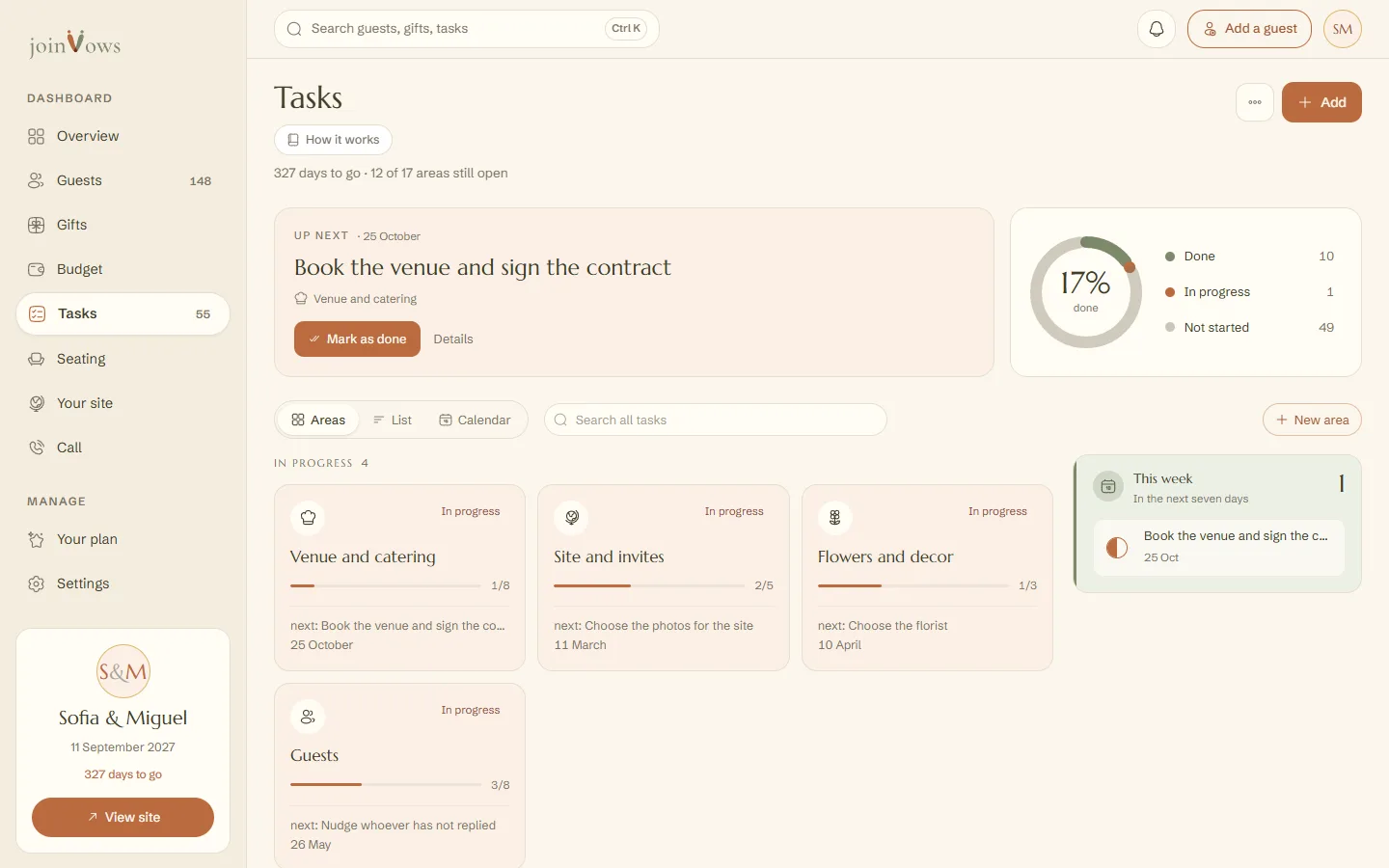
At the top, the Up next card shows the most urgent task. Next to it, the ring shows how many are done, in progress and not started. Tap a line under the ring to see only those. On the right (on a phone, above the list) are Slipped past and This week.
- 2
Mark what is done
Press Mark as done, or Mark as in progress if you've started. Each task has three states: Not started, In progress and Done.
- 3
Change a task
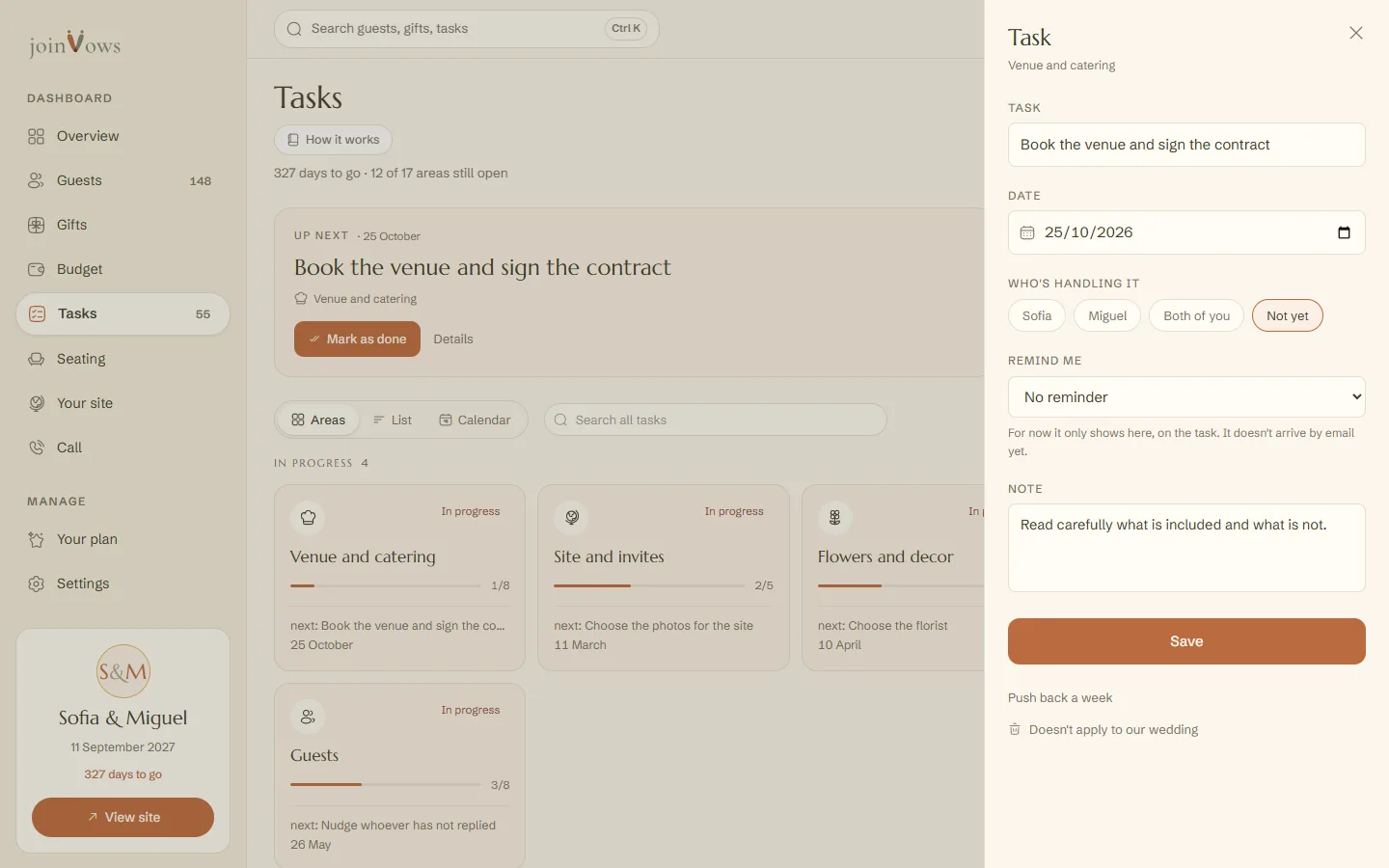
Tap the task's name, or Details. You can change the name, the date, Who's handling it (one of you, both of you or not yet) and write a note. Press Save.
- 4
Push back or remove what doesn't fit
In the details, Push back a week moves the date seven days later. Doesn't apply to our wedding deletes the task. Undo shows up straight away if you change your mind.
Add tasks and areas
- For a new task, press Add at the top (on a phone, the round button with the plus sign). Choose the area and the date.
- For an area of your own, press New area, type the name and pick an icon.
- In each area's menu you can rename it, hide it or delete it. Hidden areas are listed at the bottom of the page so you can show them again.
- Switch the view between Areas, List and Calendar, or search for a word across all tasks.
FAQ
If we change the wedding date, do the task dates change?
Yes. Open tasks move by the same number of days, including ones you added or changed by hand. Done tasks keep their date. If a date would land in the past, it lands on today. After you save the new date, we tell you how many moved.
Do we get reminders by email?
Not yet. You can choose Remind me on a task, but for now the reminder only shows on the task, in the dashboard. The weekly email summary isn't being sent yet either.
We started planning late. Are the old tasks overdue?
We don't treat them as missed. Anything dated before you created the list is there for you to pick up when you can.
Did this guide help?
Don't have a site yet?
Create yours in two minutes. Free until you decide to publish.
Create our site (opens in a new tab)