
Seat your guests
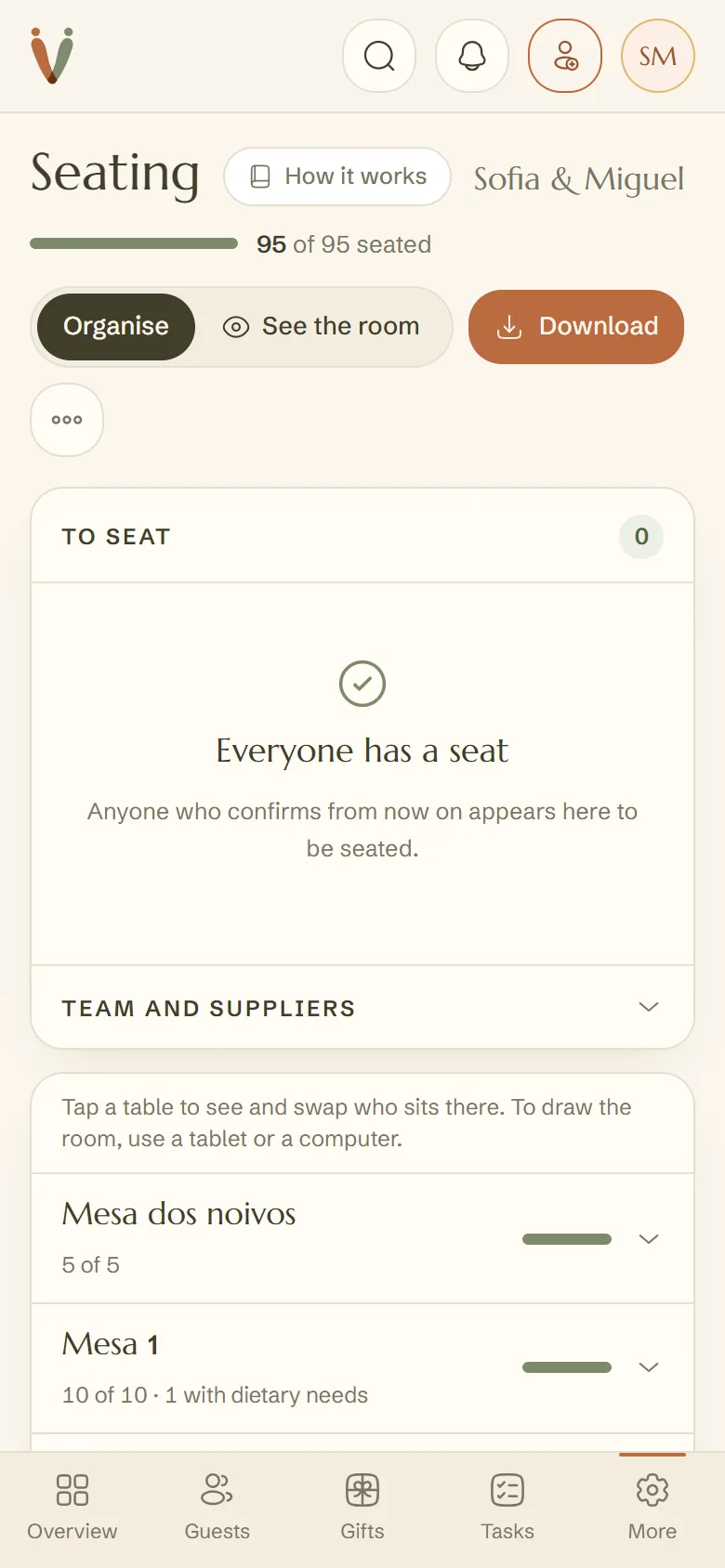
Whoever confirms shows up in To seat. Drag them to a table, or let us seat everyone left.
4 min readUpdated 24 October 2026
In this guide
In a nutshell
- Only guests who confirmed show up to be seated, in the To seat list.
- Drag a person, or the whole family by the group name, onto a table.
- Seat everyone left seats the rest, with families together and each group at tables side by side.
The To seat list comes from Guests: it has everyone who confirmed and has no seat yet. Anyone who confirms later shows up there on their own. When everyone has a seat, the list closes and the room gets the space; open it again with To seat.
Seat people
- 1
Drag onto a table
Pick up a person from the list and drop them on a table or a free chair. To move the whole family, pick up the group name. On a tablet, tap the name and then the table.
- 2
Or choose the table from a list
Next to each name, Seat at… shows the tables with room. Those with seats for the whole family come first.
- 3
Or let us seat the rest
Seat everyone left seats whoever has no seat yet, with families together and each group at tables side by side. Nobody already seated moves.
Swap and unseat
- To move someone, drag them to another chair.
- To take someone off a table, drag them back to the list, or tap the table and press Unseat next to their name. Empty clears the whole table.
- In More options, Redo everything by family unseats everyone and seats them again. Seats you chose by hand are lost.
- Undo reverses the last step.
Colours, dietary needs and children
Each chair colour is a group of guests, as in Guests. The Colours key at the top says which is which and how many are seated. Tap a group to see only those people on the plan. Dietary needs and children show next to each name when you tap a table, and on the caterer's page of the PDF.
Photographer, band and team
In Team and suppliers, press Add a team member and type the names. Drag them to a chair or press Create team table. Team members take a seat but don't count as guests.
FAQ
Why doesn't a guest show up to be seated?
Only people who confirmed show up. If they haven't replied yet, or said they're not coming, they won't be in To seat.
Can guests see where they're sitting?
Not on the site. The seating plan is only in your dashboard. For guests, print the list for the entrance, which comes in the PDF.
There aren't enough seats. What do we do?
We tell you how many seats are missing. Add a table with Add or give a table more seats.
Did this guide help?
Don't have a site yet?
Create yours in two minutes. Free until you decide to publish.
Create our site (opens in a new tab)