Get to know your dashboard
What each page of the dashboard holds and what the Overview shows.
4 min readUpdated 18 October 2026
In a nutshell
- The Overview sums it all up: replies, gifts, budget, tasks and the state of your site.
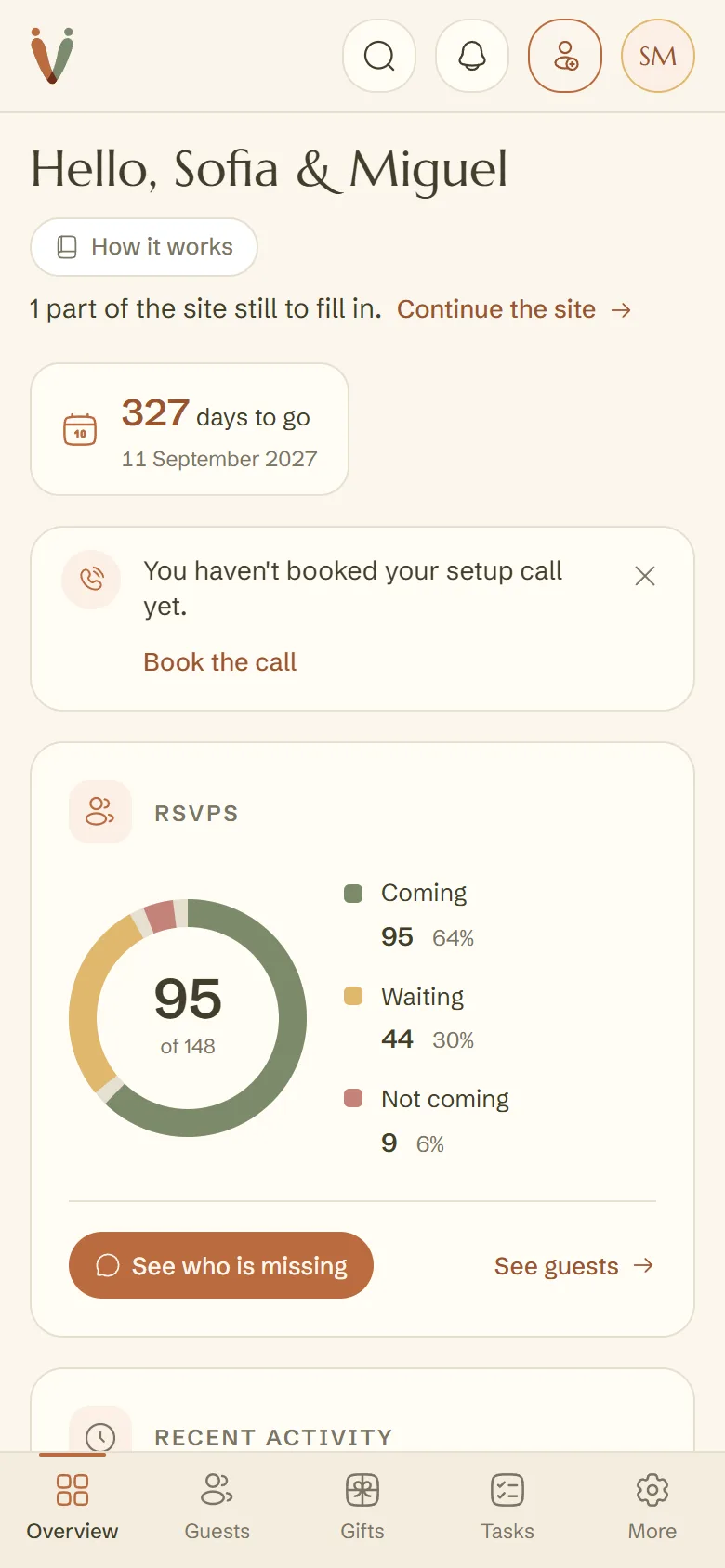
- On a computer, the pages are in the left-hand column. On a phone, in the bar at the bottom.
- In the top bar: search, the bell with what's new, Add a guest and your initials, which open your account.
The dashboard is your side of joinVows, at app.joinvows.com. Guests never see it. When you are in the site editor, the Your dashboard button brings you back here.
The pages
- Overview: a summary of everything, and notes from our team.
- Guests: the list, the households and who has replied.
- Gifts: your list and what you have been given.
- Budget, Tasks and Seating: for planning the wedding, on the Elegante and Único plans.
- Your site: the parts of the site and what is still to fill in.
- Publish and Settings: the plan that puts your site live, the site address and your account. Once you have paid, Publish becomes Your plan: the plan you have, moving up to a bigger one, and the extras.
A page with a padlock is not in your plan yet. Before you publish, Budget, Tasks and Seating look like this. Tapping one opens Publish.
What the Overview shows
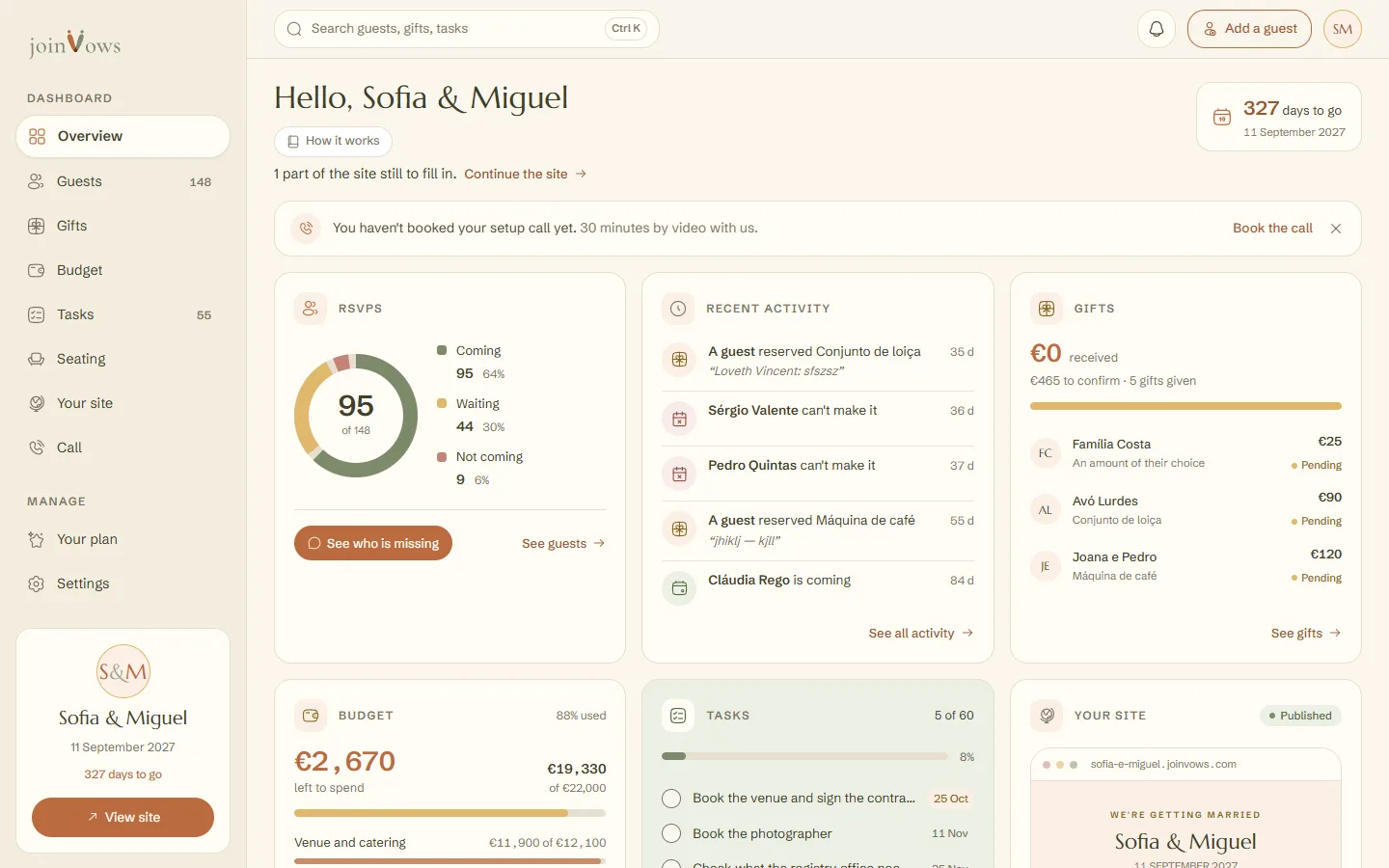
- At the top, how many days are left until the wedding, if you have set the date.
- Under your names, if parts of the site are still empty, how many are left, with Continue the site. It is the same number the editor shows.
- Replies: how many people are coming, how many haven't replied and how many can't come. See who is missing takes you to who hasn't replied.
- Recent activity: the latest replies and gifts as they arrive.
- Gifts: the amount received and what is still to be confirmed.
- Budget and Tasks: how much you still have to spend and the next tasks, with their dates. On the Elegante and Único plans; on Essencial, the box shows as locked, with one line about upgrading.
- Your site: whether it is a draft or published, with buttons to open and share it.
Under your names are the notices, one line each: your email to confirm, a Multibanco reference to pay, a note from our team, the date to set, the setup call or the site that just went live. At most two show; the rest open under more. The rest of the Overview always comes right after.
- Notices that can wait have an X to close them. The ones that hold something up, like an email to confirm or a payment to make, stay until they are done.
- A note from our team opens in full when you tap its line. Seen it, thanks, or the X, marks it as read: it leaves the Overview and stays in the bell.
- If you started without a date, there is the line You haven't set your wedding date yet. On a computer, pick the day right there and press Save. On a phone, tap Set the date first, then Save the date. The line goes away and the countdown takes its place. If you close it, it comes back after two weeks; in the bell, it stays until you add it.
The top bar
- Search: type at least two letters of a guest's, gift's, task's or page's name. Tapping a result opens it. On a computer, Ctrl K (or Cmd K on a Mac) takes you straight to search. On a phone, tap the magnifying glass.
- The bell: what's new, newest first. New replies and gifts, notes from our team, your site review, finished change requests, payments and the day your site went live. The number says how many are new and goes away when you open the bell.
- At the top of the bell are the things still to do, until they are done: your wedding date, if you haven't added it (you can add it right there), a Multibanco reference still to pay, where the gift money goes (once there are gifts on your list and you haven't given an IBAN or MB WAY), or the end of your site's time online.
- Tapping a note from our team in the bell opens it in full, on the Overview.
- Add a guest: opens Guests with the cursor in the add line. On a phone or tablet it is just the person icon with a plus sign. It doesn't show on Guests, which has its own button.
- Your initials: your names and the account email, with Settings, your site, Help and guides and Sign out.
On a phone
The bottom bar has Overview, Guests, Gifts and Tasks. More opens the other pages: Budget, Seating, Your site, Publish (or Your plan, once you have paid) and Settings. On a phone, the Overview's notices take at most two lines, so the summary comes right after.
On a computer, below the pages, you will find your names with a button to open your site, Help and guides and the dashboard language switch.
FAQ
Why does Tasks have a padlock?
Tasks, Budget and Seating are part of the Elegante and Único plans. They open when you publish on one of them.
Does changing the dashboard language change the site's language?
No. The dashboard language is just for you. The site's languages are chosen separately.
Did this guide help?
Don't have a site yet?
Create yours in two minutes. Free until you decide to publish.
Create our site (opens in a new tab)