
Set up the room and tables
Answer a few questions with pictures and the room is set up. Then adjust it table by table.
4 min readUpdated 24 October 2026
In this guide
In a nutshell
- Open Seating and answer, with pictures: where the party is, the style, which tables and how many, and how to seat your guests.
- The room is set up with the couple's table, a dance floor with your initials, the DJ, the cake and the bar. Then drag and change anything you like.
- It is on the Elegante and Único plans. To draw the room, use a computer or a tablet.
In Seating you draw the reception room and seat the guests who confirmed. You start by setting up the room.
The first questions
- 1
Where the party is
Indoors or Outdoors. If nobody has confirmed yet, we first ask roughly how many people you expect.
- 2
The style
Choose a ready-made style, such as Classic or Rustic, or press I'd rather choose the floor, the tablecloths and the chairs. It is only so the room looks like yours. Change it any time with Style.
- 3
The tables
Round, Long or Both. For each, say how many people at each table and how many tables. We start with numbers that fit your guests, and underneath we add up the seats and tell you if any are missing.
- 4
The guests
If people have already confirmed, choose With their family and group (each group at tables side by side), Mix the groups (so people meet) or Start from scratch (the tables stay empty). Each invitation always stays together.
When the room is ready, we ask if you would like a guided tour: it shows where everything is, in under a minute. You can see it again in More options.
Adjust the room
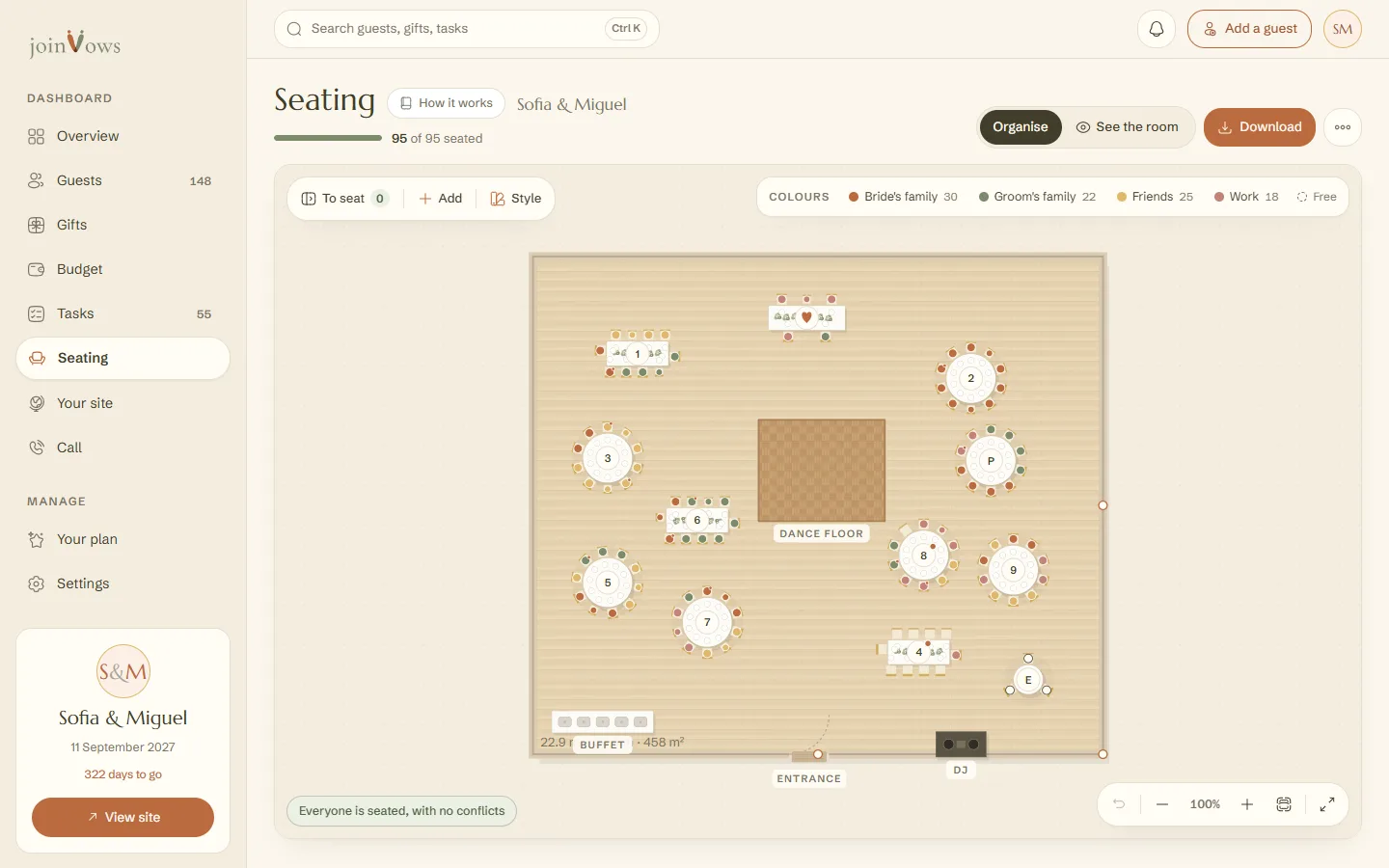
- Drag the tables and items to where they are in the real room.
- Each table has a small circle: its number, a heart on the couple's table, or the initials of its name. An orange dot means it has free seats. Zoom in to read the names.
- Tap a table to change its name, its shape, the people at that table (it can be fewer than the others, 5 for example) or to Rotate it. Remove table takes it out, and whoever sat there goes back to the list.
- Add shows in pictures what can go in the room: tables, dance floor, DJ, stage, lounge, bar, cake, sweets table, buffet, photo booth, guest book, gifts, entrance, pillar, plant and text. At the bottom, type the name of anything else.
- Style changes the floor, the tablecloths and the chairs, and where the party is. The room changes right away.
- Tap the dance floor to change the initials, the colour of the letters and the floor of the dance floor.
- In More options, Room size saves the width and length in metres. You can also drag the walls by their handles.
- See the room shows it in 3D: turn it and look for a guest by name.
- Focus mode shows just the room, without the rest of the dashboard. The F key does the same.
FAQ
Can I set up the room on my phone?
The first questions work on a phone. After that, on a phone you see the tables as cards and can seat and swap people. To draw the room and move tables, use a tablet or a computer.
Can we have tables of different shapes?
Yes. In the tables question choose Both, or tap a table and change its shape. Each table can have its own shape and number of seats.
Nobody has confirmed yet. Can we set up the room already?
Yes. Use your estimate of people. Anyone who confirms later shows up in the list to be seated.
Did this guide help?
Don't have a site yet?
Create yours in two minutes. Free until you decide to publish.
Create our site (opens in a new tab)