Your site in two languages
Adding a second language to your site, writing your text in it, and how guests switch language.
3 min readUpdated 5 October 2026
In a nutshell
- The Elegante and Único plans have two languages. Essencial has one.
- Choose the second one in Settings, Languages, and press Save.
- In the editor, pick the language under Writing in and write your text.
With guests from other countries, your site can have two languages: the main one, chosen when you created the site, and one more from Portuguese, English, Spanish or French.
Add the second language
- 1
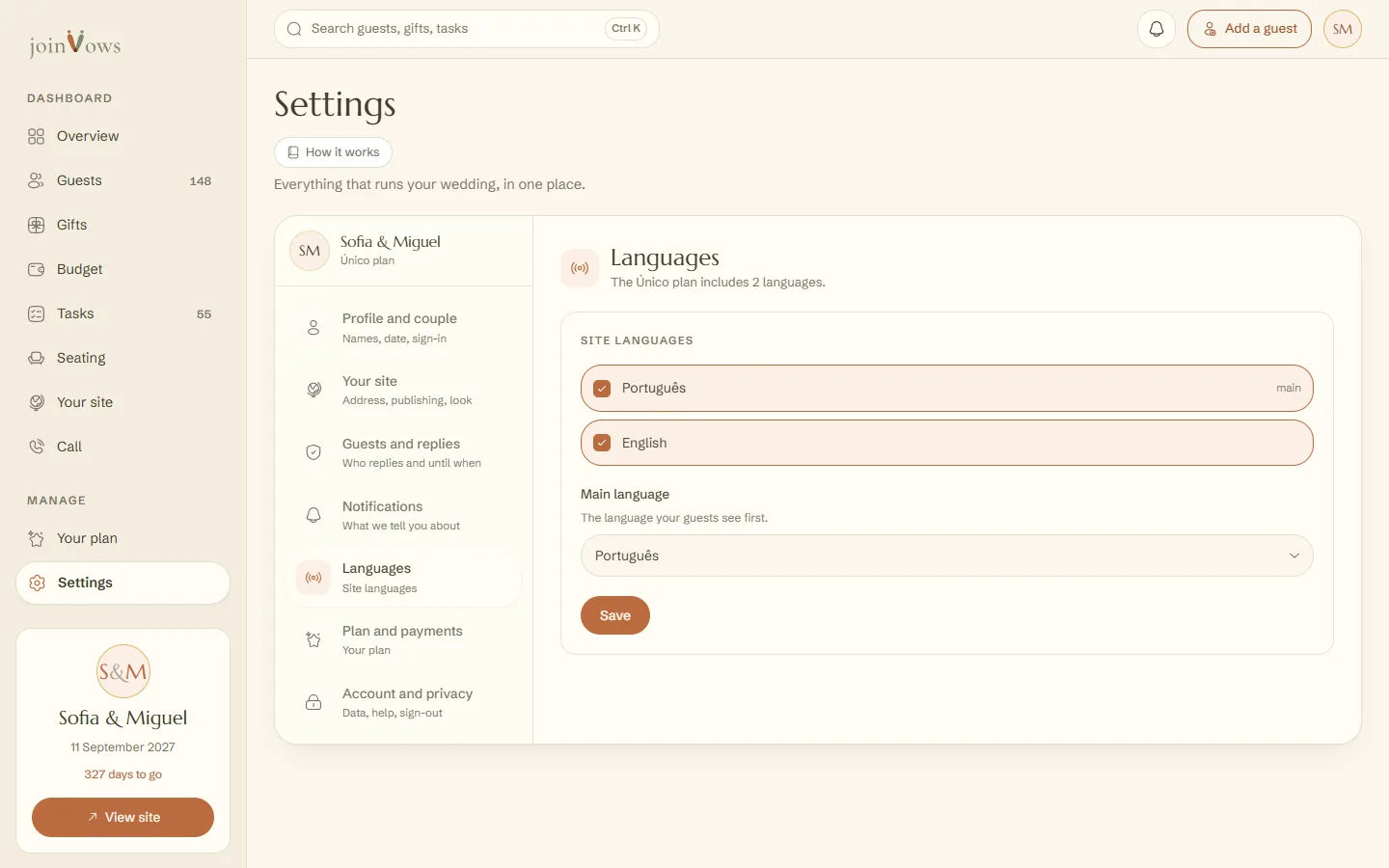
Open Settings, Languages
In your dashboard, press Settings and then Languages.
- 2
Choose the language
Tap the second language. Under Main language, choose the one guests see first. Press Save.
- 3
Write your text in that language
In the editor, each part with text shows Writing in at the top of the panel. Pick the language, type and save. Anything you leave blank shows in the main language.
What is the same in both languages
- Your names, initials and date. On the cover, the second language only has the line above the names.
- The moments in The day, with times and places.
- Gifts, photos and Travel and stay.
- The design's own titles switch language by themselves.
On the site, guests switch language with the PT and EN (or ES, FR) buttons in the bottom left corner.
FAQ
Can we have three languages?
No. The maximum is two, on the Elegante and Único plans.
Do you translate the text?
No. The design's titles come translated. You write your own text in each language.
Did this guide help?
Don't have a site yet?
Create yours in two minutes. Free until you decide to publish.
Create our site (opens in a new tab)