
How to add a photo to a gift
A photo helps guests see what they're giving.
2 min readUpdated 18 October 2026
In a nutshell
- In Gifts, in the The list tab, press Photo on the gift's card.
- Choose a photo from your phone or computer. It goes on your site straight away.
Each gift and each fund can have one photo. It shows on the gift's card on your site and in the window where the guest chooses it. Without a photo, the gift shows an icon.
- 1
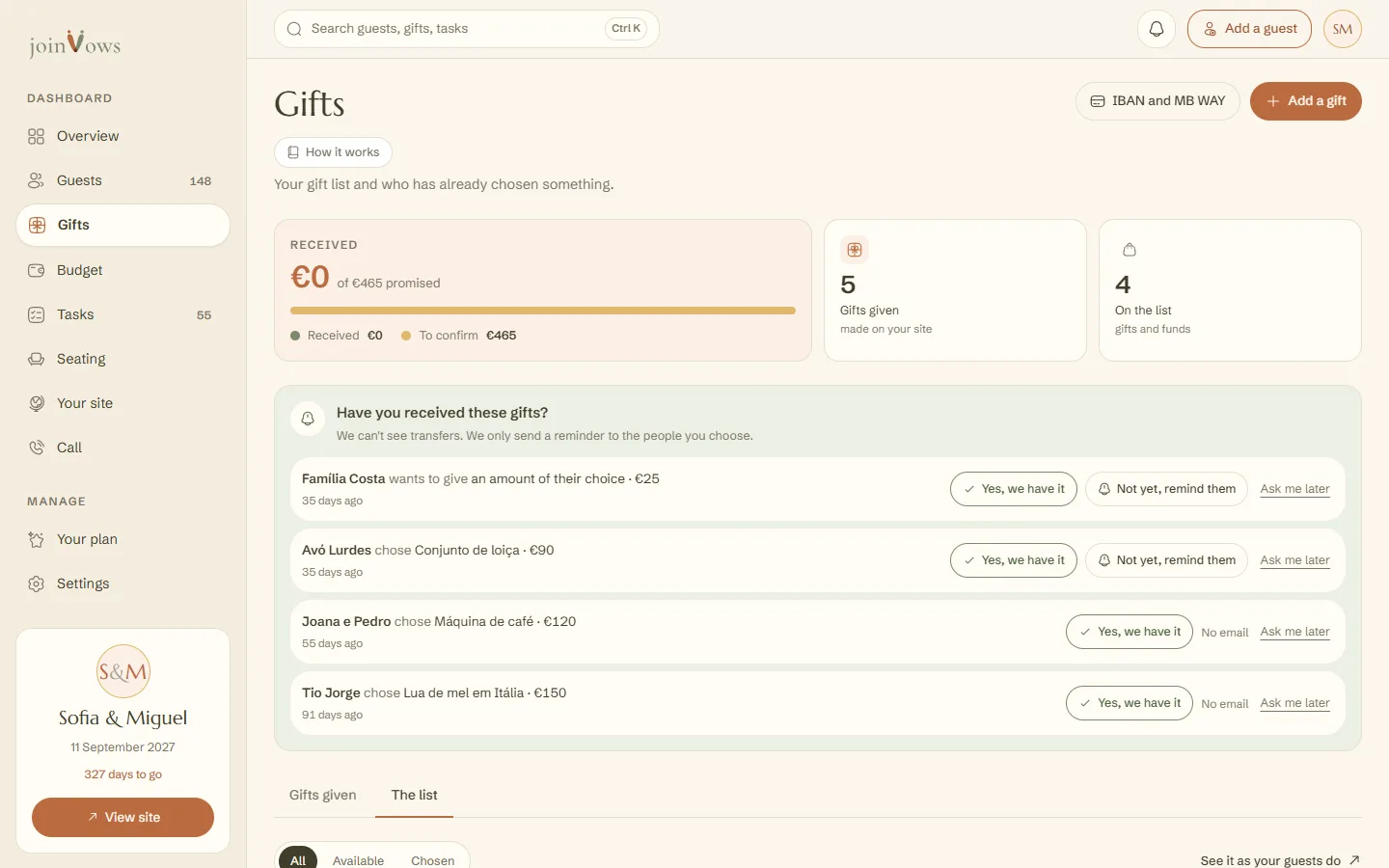
Open the The list tab
It's in Gifts, next to Gifts given.
- 2
Press Photo on the gift's card
The button is in the bottom corner of the card's picture. If the gift already has a photo, the button says Change.
- 3
Choose the photo
It can be from your phone or computer. We make it smaller before uploading, so a large photo works too.
FAQ
Which photos work?
Normal photos from your phone or computer, in JPG or PNG. If one won't open, try another.
Can I remove a gift's photo?
For now, you can only swap it for another with Change. If you need it removed, write to support@joinvows.com.
Did this guide help?
Don't have a site yet?
Create yours in two minutes. Free until you decide to publish.
Create our site (opens in a new tab)