
Choose your design and colours
Try designs and palettes on your own site, and save only when you like what you see.
3 min readUpdated 18 October 2026
In a nutshell
- In the editor, tap Design or Colours. Each choice shows on your site straight away.
- Nothing is kept until you press Save. Your text and photos stay the same.
There are 8 designs, each with its own colours. You can change the design and the colours whenever you like, before or after publishing. Your text and photos move to the new design.
Change the design
- 1
Open the editor
In your dashboard, press Edit on the site. On a computer, tap Design in the panel beside the site. On a phone, tap Parts and then Design.
- 2
Tap a design
Your site changes right beside the panel, with your names and photos. Try as many as you like.
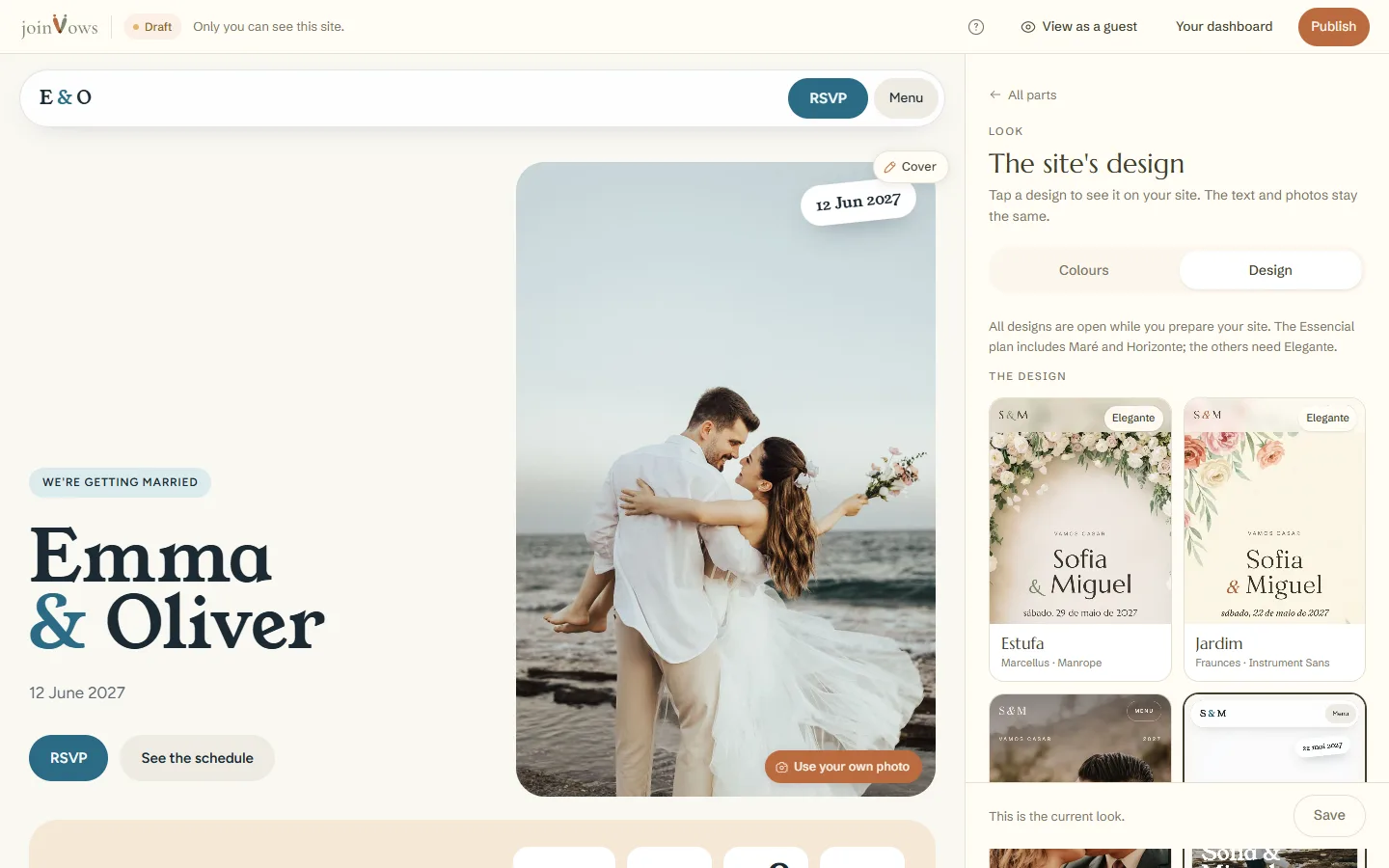
- 3
Save
Press Save to keep the design. Undo goes back to what you had.
Change the colours
Each design has two or three ready-made palettes, chosen to go together. On a computer, tap Colours in the panel beside the site. On a phone, tap Parts and then Colours. Tap a palette to see it on your site, then press Save.
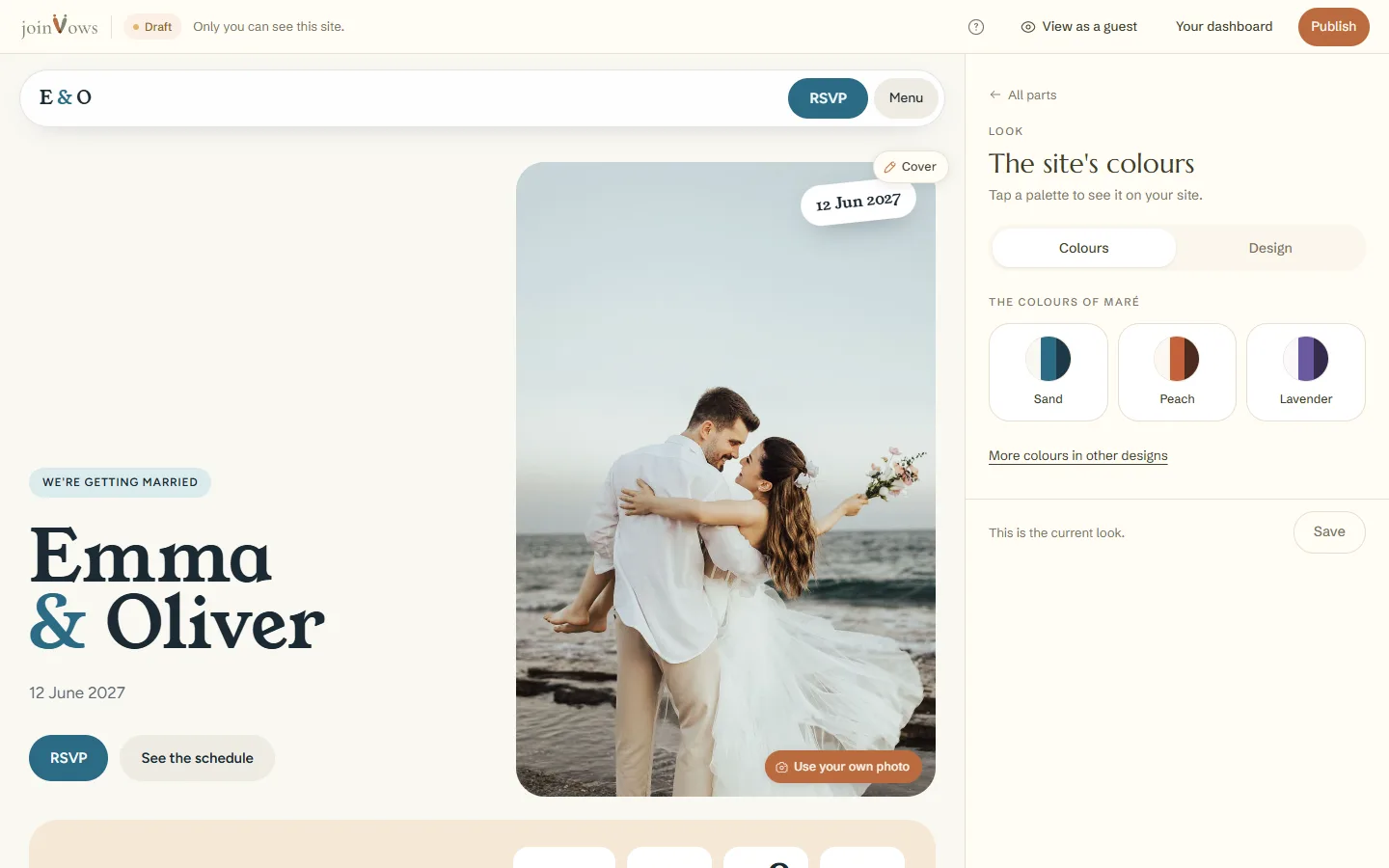
Designs on each plan
While you prepare the site, every design is open. The Essencial plan includes the Maré and Horizonte designs. Elegante and Único include all 8. Designs that need Elegante carry an Elegante label. On every plan you can use all the colours of your design.
FAQ
Do I lose my text if I change the design?
No. Your text and photos stay the same. Only the look changes.
Can I change the design after publishing?
Yes. When you press Save, the site changes straight away for your guests.
Can I pick any colour I want?
No. Each design has ready-made palettes, so the colours always go together.
Did this guide help?
Don't have a site yet?
Create yours in two minutes. Free until you decide to publish.
Create our site (opens in a new tab)